

App Installation
Dieser Inhalt ist noch nicht in deiner Sprache verfügbar.
In Crowdin übersetzenYou can install Crowdin Apps either from the Crowdin Store or manually, depending on whether the app is already published.
To install an app that is already published on the Crowdin Store, follow these steps:
- Open your profile home page and select Store on the left sidebar.
- Click Install on the needed app.
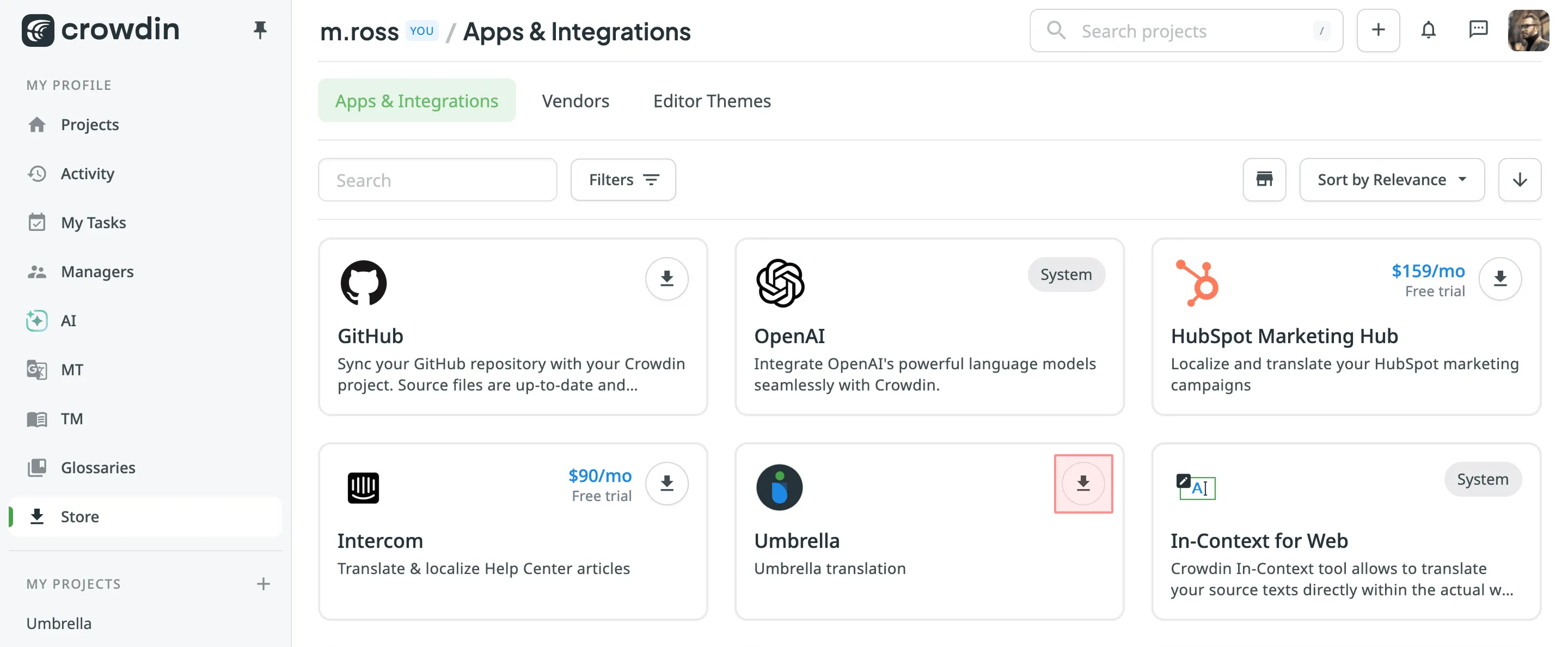
- In the appeared dialog, configure preferred permissions and click Install.
To install a private app, follow these steps:
- Go to Account Settings > Apps and click Install Private App.
- Select how you want to install the app and click Install:
- From a manifest URL – for self-hosted apps that run on your own server. Paste in the app’s Manifest URL.
- From a manifest file – for serverless apps that Crowdin hosts. Upload the app’s manifest file (
.json).
- Configure preferred permissions. If you chose From a manifest file, also select the App source:
- Production bundle – upload the app’s build as a
.zipbundle. Crowdin hosts it and serves it to your users. - Development URL – load the app from a URL while you develop it, for example from a local dev server.
- Production bundle – upload the app’s build as a
- Click Install.
To install an app that is already published on the Crowdin Store, follow these steps:
- Open your organization’s Workspace and select Store on the left sidebar.
- Click Install on the needed app.
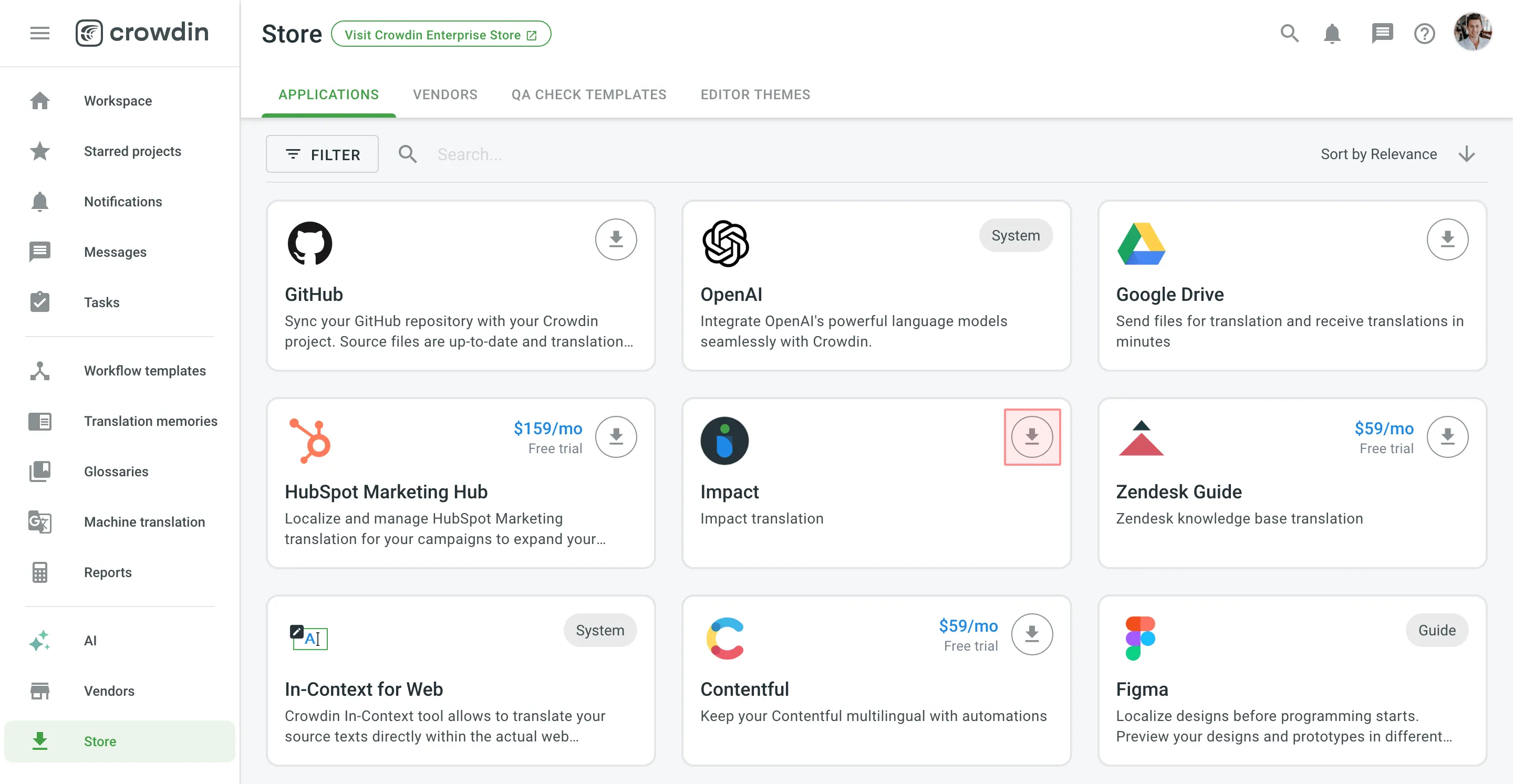
- In the appeared dialog, configure preferred permissions and click Install.
To install a private app, follow these steps:
- Go to Organization Settings > Apps and click Install Private App.
- Select how you want to install the app and click Install:
- From a manifest URL – for self-hosted apps that run on your own server. Paste in the app’s Manifest URL.
- From a manifest file – for serverless apps that Crowdin hosts. Upload the app’s manifest file (
.json).
- Configure preferred permissions. If you chose From a manifest file, also select the App source:
- Production bundle – upload the app’s build as a
.zipbundle. Crowdin hosts it and serves it to your users. - Development URL – load the app from a URL while you develop it, for example from a local dev server.
- Production bundle – upload the app’s build as a
- Click Install.
Configure preferred permissions for each app during installation. In this step, you define who can access and use the app across its modules, and in which projects of your Crowdin account (for Crowdin) or Crowdin organization (for Crowdin Enterprise) it can be used.
If you restrict access to certain projects by using the Selected projects option, the app cannot communicate via the API with projects outside that list. The app is also displayed only in the UI of the selected projects.
You can configure these access permissions during installation or adjust them at any time for already installed apps: go to Account Settings > Apps (for Crowdin) or Organization Settings > Apps (for Crowdin Enterprise) and select Edit on the app.
You can define which user categories can use the app. Configure this setting separately for each app module, so a module can have different access from the others.
Available options for Crowdin:
- Only me – the user who installed the app.
- Me, project managers and developers / translation requestors
- All project members
- All users, including guests (unauthenticated users)
- Custom Access – the users you pick with Select users. The module switches to this option automatically once you pick users.
Available options for Crowdin Enterprise:
- Only admins
- Admins, managers and developers / translation requestors
- All project members
- All users, including guests (unauthenticated users)
- Custom Access – the users you pick with Select users. The module switches to this option automatically once you pick users.
You can also specify the projects in which the app can be used (these settings apply across all app modules).
Project access options:
- All projects I have access to (for Crowdin) or All projects (for Crowdin Enterprise)
- Selected projects
When a Crowdin App is installed in the Account Settings, an authorization flow takes place, during which Crowdin and the Crowdin App exchange the authorization data (the authorization code is exchanged for an access token). The following illustration shows the events in this process.
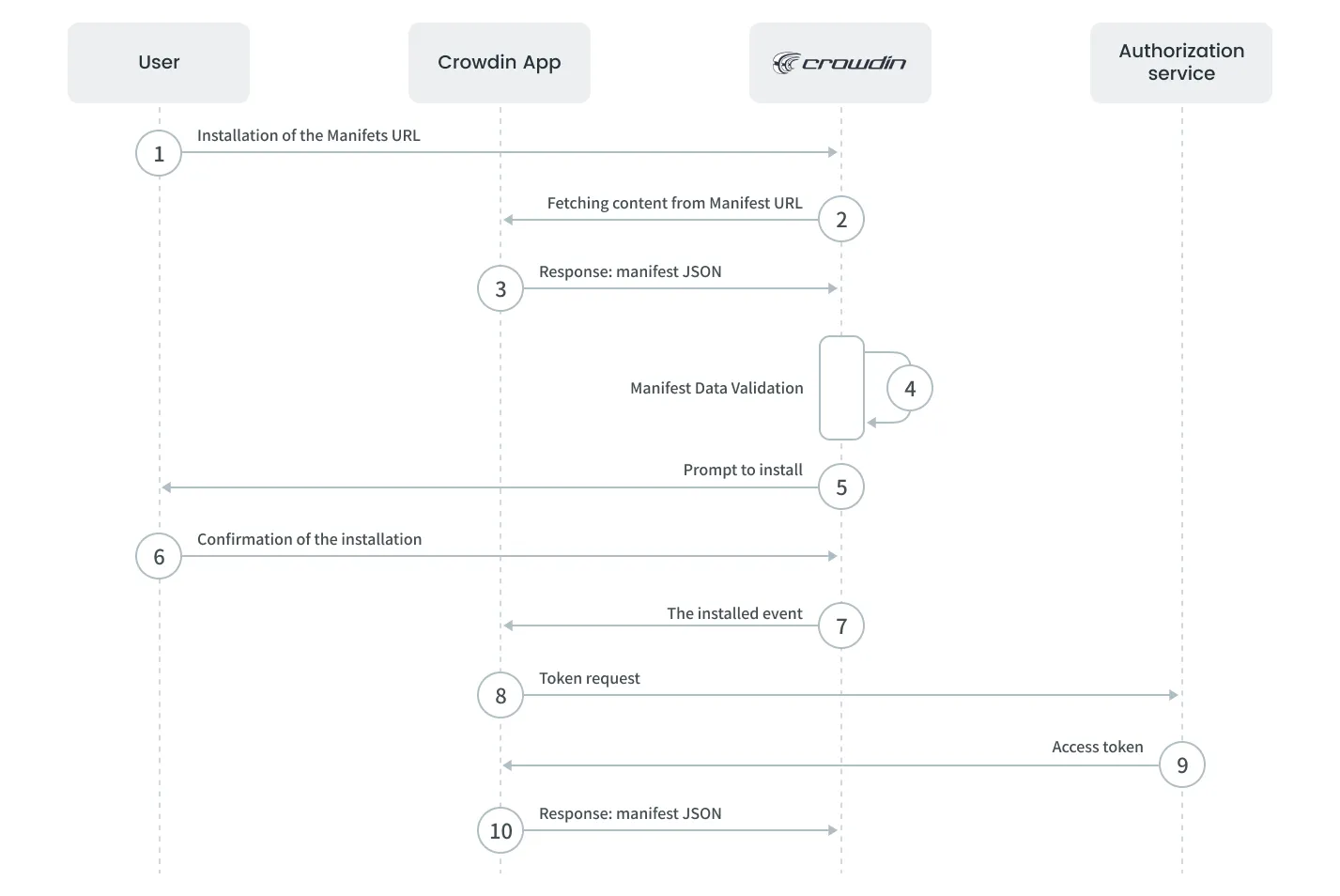
Let’s examine each step in the illustration in detail:
- Installation of the Manifest URL - the user pastes in the Manifest URL in Account Settings > Apps and clicks Install.
- Fetching content from the Manifest URL - the request is sent to the Crowdin App.
- Response: manifest JSON - the Crowdin App returns the Manifest JSON that contains data about the app.
- Manifest Data Validation - the received content is validated against the structure and data of the Manifest JSON.
- Prompt to install - Crowdin displays the information about the Crowdin App, the list of permissions, and the Install button to the user.
- Confirmation of the installation - the user confirms the installation of the Crowdin App.
- The Installed event - Crowdin sends the Installed event with the authorization code to the Crowdin App so it can generate an API token.
- Token request - the Crowdin App sends a request to acquire an API token:
POST https://accounts.crowdin.com/oauth/token
- Access Token - the authorization service returns the API access token and the refresh token.
- Success Code Response - the Crowdin App returns the success status code (2xx), which confirms that the app installation finished. If the status code is different, the app will be removed from the Crowdin account.
Token request parameters (step 8):
grant_type: crowdin_app | Type: Required: yes Description: Specifies the flow for an OAuth app. |
client_id | Type: Required: yes Description: The Client ID for the app is received when the app is registered. |
client_secret | Type: Required: yes Description: The Client Secret for the app is received when the app is registered. |
app_id | Type: Required: yes Description: Crowdin app identifier from the app descriptor. |
app_secret | Type: Required: yes Description: The unique secret used to authorize your Crowdin app. This value is retrieved from the installed event. |
domain | Type: Required: yes Description: The name of the organization from which the app is accessed. This value is retrieved from the installed event. |
user_id | Type: Required: yes Description: The identifier of the user who installed the app. This value is retrieved from the installed event. |